
Connie for Slack
Put your go-to-market work where your team already talks
The Connie app for Slack lets you build automations that run when something happens in Slack and act back in Slack — posting updates, replying in threads, opening channels and reacting — without writing code.
 Free to install. You'll need a Connie account to build automations.
What Connie is, and what the Slack app does
Connie is an AI workspace for go-to-market teams. It holds your records, a multichannel inbox and a workflow builder, and connects to more than a thousand tools and data providers so that the work between them — researching an account, enriching a lead, chasing a deal, handing something to a colleague — can run on its own.
The Connie app for Slack is how that work reaches the place your team actually watches. Without it, an automation finishes somewhere nobody is looking: a row updated in a table, a record enriched, a reply received. Someone still has to notice and tell the rest of the team. With it, the automation itself posts to the channel, answers in the thread, DMs the owner, or opens a channel for a new deal — and anything said in Slack can start an automation in the first place.
That is the problem it solves: the gap between an automation finishing its work and a person finding out. Connie is not a Slack client and does not replace one. It never renders your Slack conversations back to you as a browsable archive.
How it works in Slack
Four steps, from installing to the first message your team sees.
1.Install Connie from this page
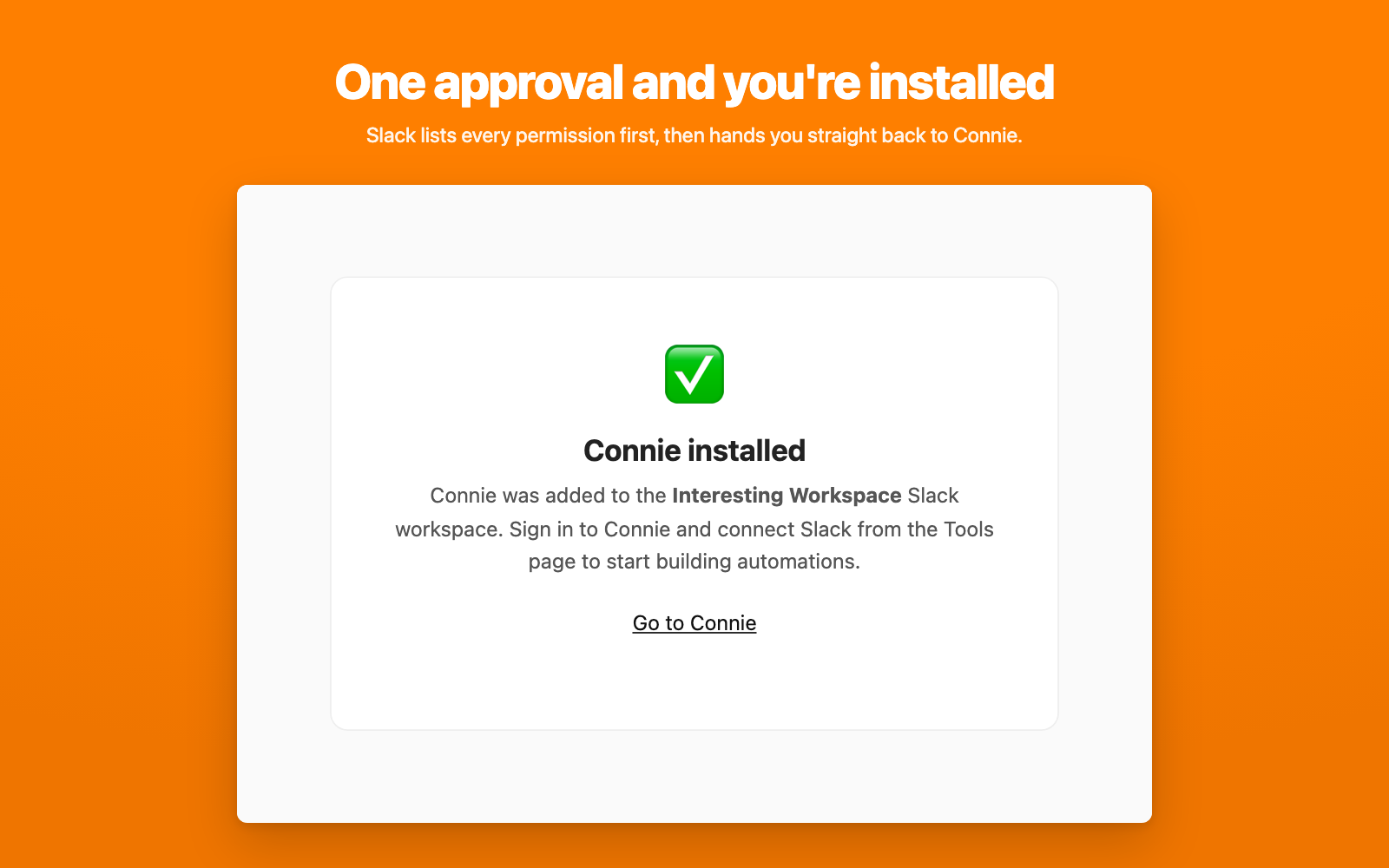
Choosing Add to Slack takes you straight to Slack's own approval screen, where Slack lists every permission the app asks for before anything is installed. Approve it and Connie is added to your workspace as a bot user, with a confirmation page back on connie.ai.
Nothing is posted to your workspace at install time, and Connie cannot see a channel until someone invites it to that channel.
2.Connect the Slack workspace to Connie
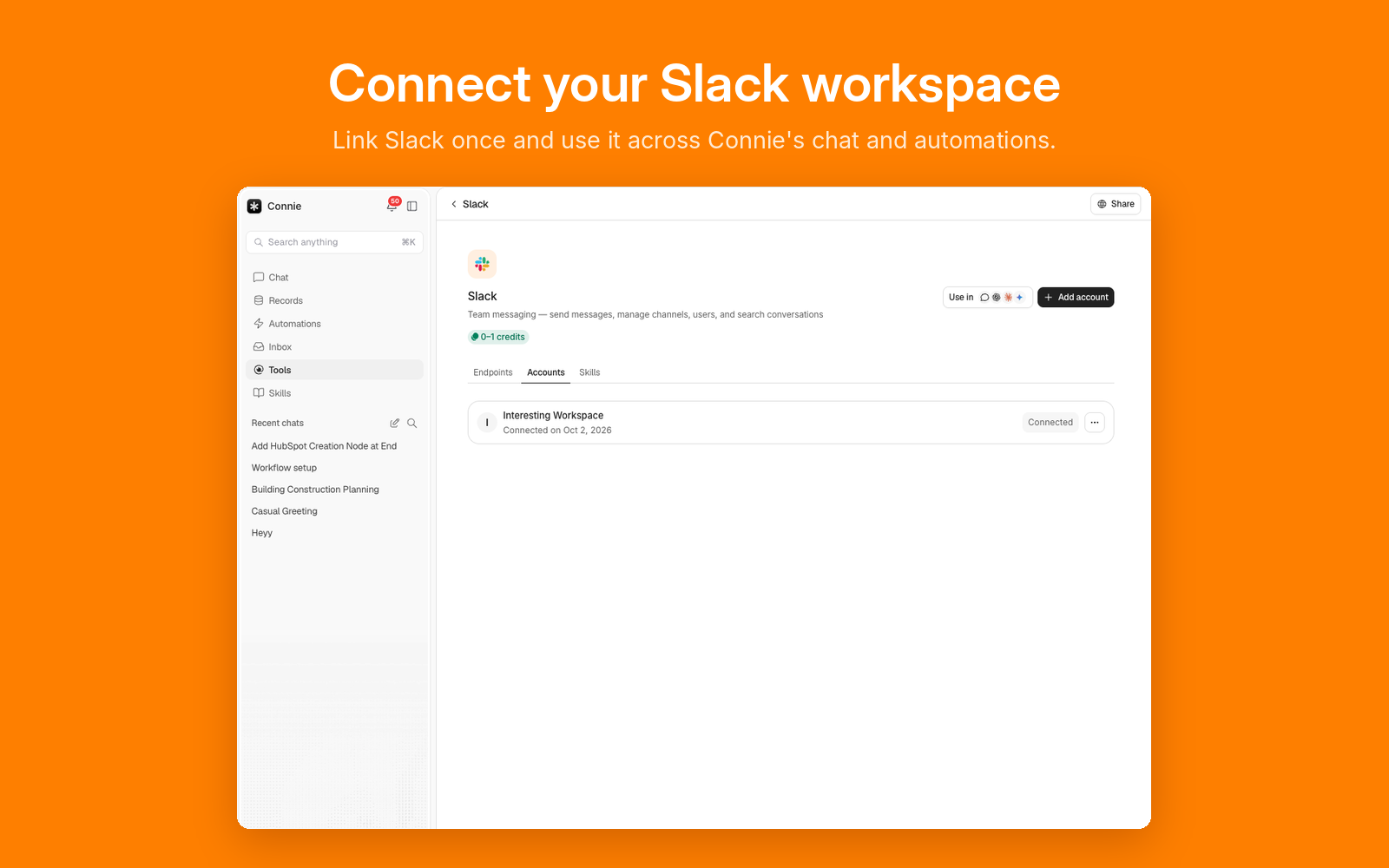
Sign in to Connie and open Tools → Slack. Connecting there links the Slack workspace you just installed into to your Connie workspace, so automations know which Slack to act on. One Connie workspace can hold several Slack accounts.
3.Pick a Slack event to start the automation
In Connie's workflow builder, a Slack trigger starts a run the moment something happens in Slack. Connie listens for the app being @mentioned, a message posted in a channel the app is a member of, a direct message sent to Connie, a reaction added, a channel created, someone joining a channel, a file shared, and a new member joining the workspace.
Connie only receives messages from channels the app has been invited to. It is not a Slack client: there is no inbox, search or message-browsing interface over your Slack content inside Connie.
4.Let Connie act in Slack
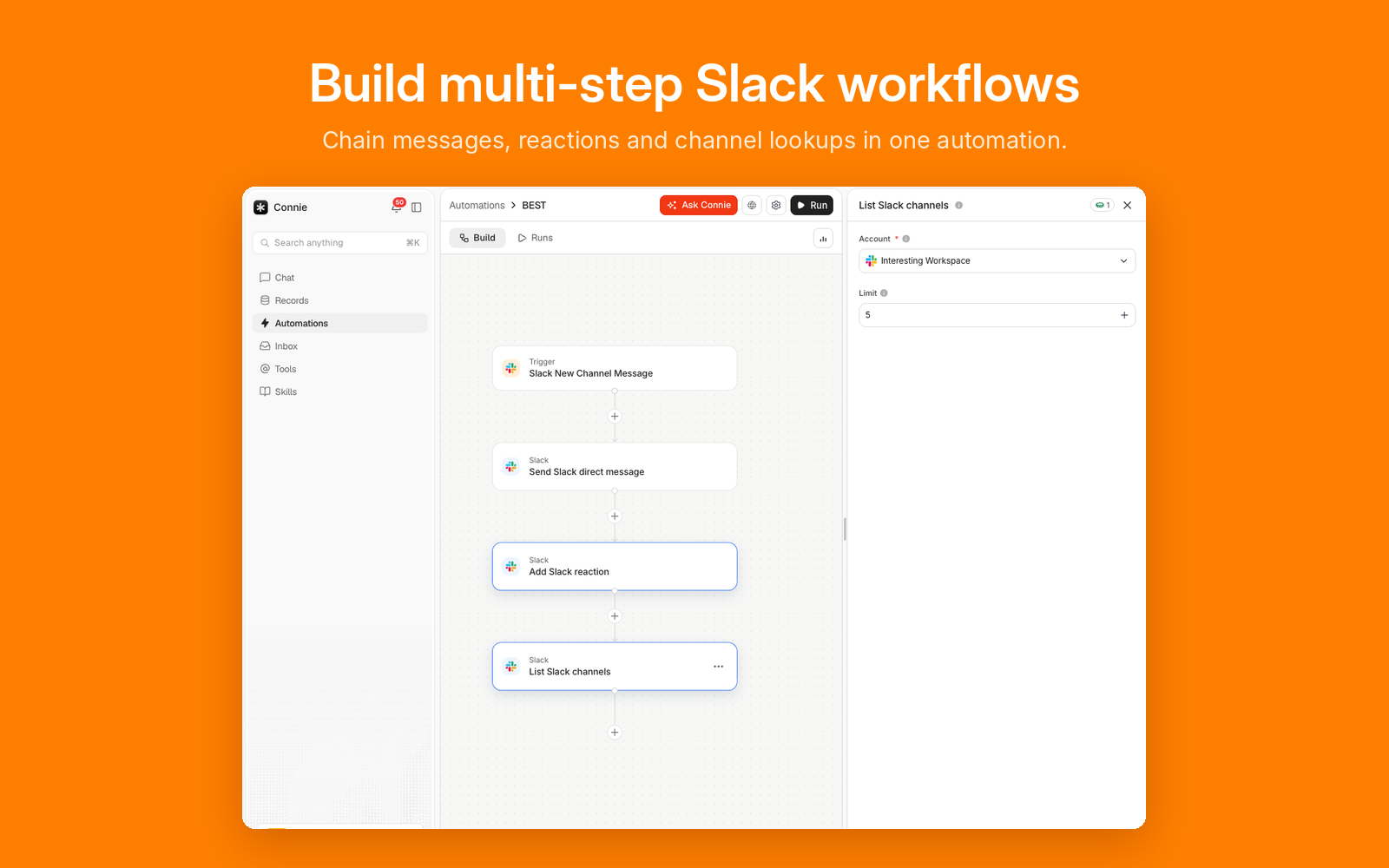
The steps that follow a trigger are what your team sees in Slack. Connie can post a message to a channel, reply in a thread, send a direct message, add or remove a reaction, upload a file, update or delete a message it posted, create, rename, archive or set the topic of a channel, invite people to one, and manage user groups.
Who a message comes from is yours to choose, per step. By default a step you built sends as you, using the Slack account you connected — outreach you wrote should come from you. Turning on Send as Connie app (bot) sends it from the Connie app instead, and a step an AI agent runs on its own sends as the app unless that step turns it off, so an autonomous message is not mistaken for one you typed.
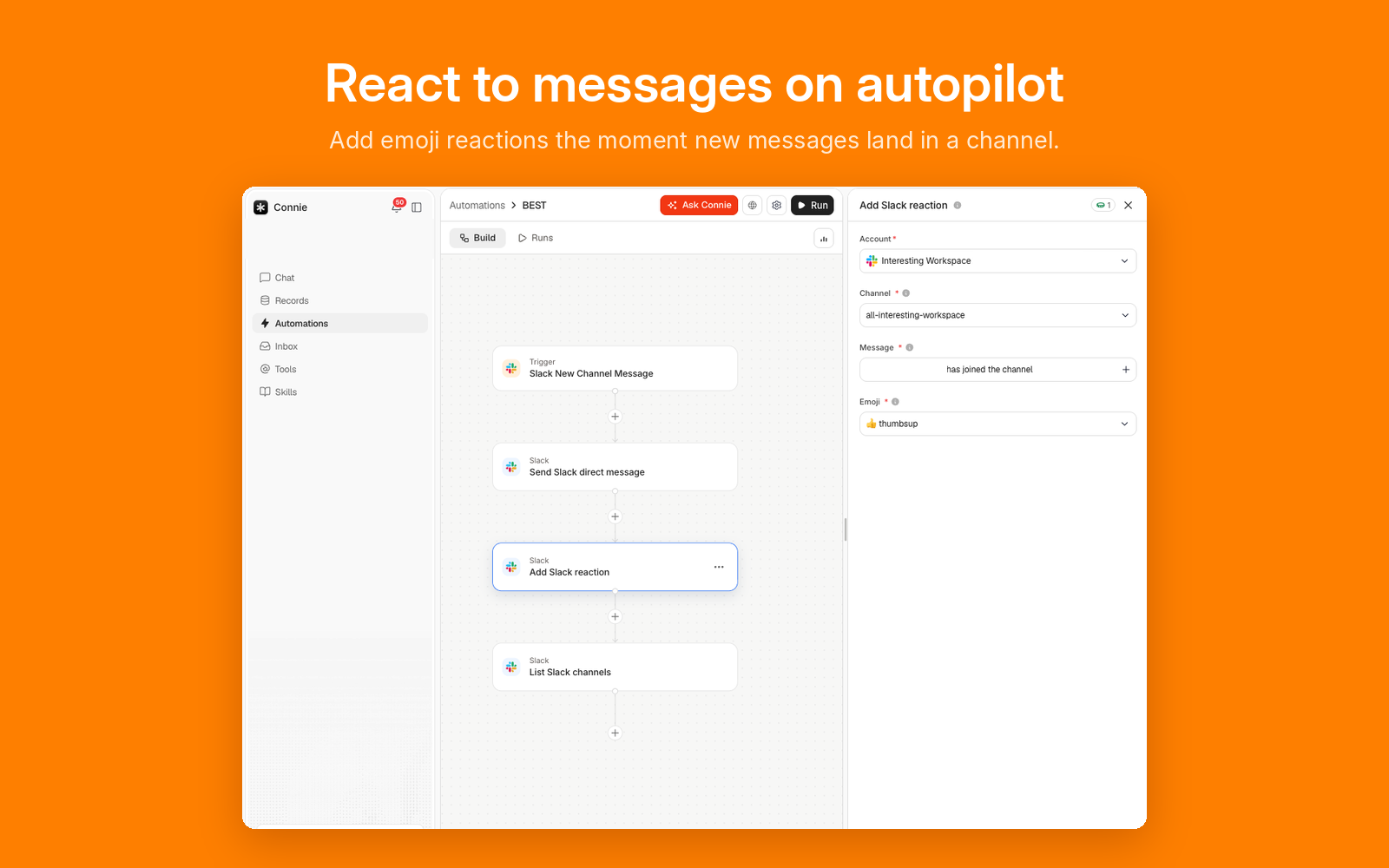
Steps chain, so one Slack event can post, react and look up a channel in a single run — and reach the rest of Connie in the same automation, enriching a lead or creating a deal between two Slack steps.
What Connie can and cannot see
Slack shows you the full permission list before you install, and Connie asks only for what its automations run on. In practice that means it can read messages in channels it has been invited to, post and manage messages and files, manage channels and user groups it is allowed to, read reactions and add them, and look up a user by name or email so a workflow can message the right person.
Because a step can send as you, the install also asks for a small set of permissions on your own account: posting and uploading as you, and searching the public and private channels you can already read, so a workflow can find a message you are looking for. It asks for nothing on your direct messages.
It does not receive your private direct messages with other people — only messages sent to Connie itself — and it does not search them. Your Slack content is never used to train AI models. The Privacy Policy sets out in full what is processed, how long it is kept, and how to remove it.
You can remove Connie at any time from your Slack workspace's app management page, or disconnect the account from Connie's Tools page.
Add Connie to Slack
Installing takes one approval in Slack. Afterwards you'll land on a confirmation page on connie.ai telling you the app was added, and the next step is to sign in to Connie and connect Slack from the Tools page.
Questions, or something not working? Connie Support answers at support@connie.ai within one to two business days.